

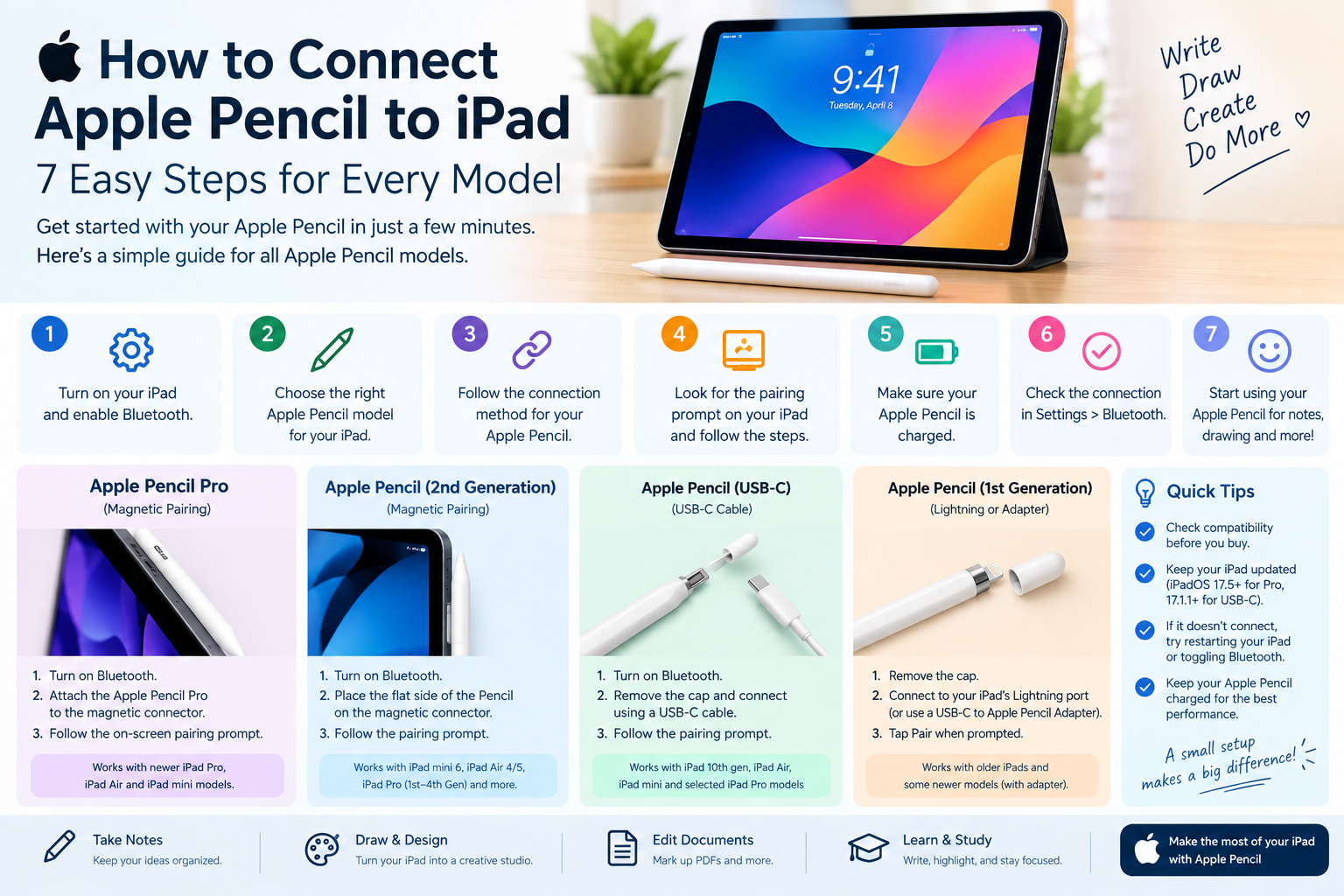
Learn how to connect Apple Pencil to iPad with 7 simple steps, including pairing, charging, Bluetooth settings, and troubleshooting common connection issues.
Connecting an Apple Pencil to an iPad is usually quick, but the exact pairing method depends on the Apple Pencil and iPad model you have. Some models connect through a magnetic attachment, while others may require a USB-C or Lightning connection before pairing. Knowing the correct steps can help you get your Apple Pencil working without unnecessary troubleshooting. This guide explains how to connect Apple Pencil to iPad with simple steps and useful tips for common connection problems.
Getting an Apple Pencil is exciting, especially if you want to take notes, draw, edit photos, mark documents, or use your iPad for study. But there is one small problem that can stop you at the beginning: how to connect Apple Pencil to iPad.
The process is usually quick, but it depends on which Apple Pencil and iPad you have. Some Apple Pencil models connect by attaching magnetically to the side of the iPad. Others need a USB-C cable or adapter.
The good news is that you do not need complicated technical skills. Once you know which Apple Pencil you have, pairing it with a compatible iPad is usually simple.
This guide explains how to connect every current Apple Pencil type to a compatible iPad. It also covers charging, Bluetooth, compatibility, common connection problems, and what to do if your Apple Pencil does not appear on the screen.
What Do You Need Before How to Connect Apple Pencil to iPad?
Before trying to pair your Apple Pencil, check two things: your Apple Pencil model and your iPad model.
This is important because Apple Pencil models are not compatible with every iPad. Apple currently supports several Pencil models, including Apple Pencil Pro, Apple Pencil (USB-C), Apple Pencil (2nd generation), and Apple Pencil (1st generation). Each model works with a specific group of iPads.
Your iPad should also be turned on and have Bluetooth enabled.
To check Bluetooth, open Settings, select Bluetooth, and make sure Bluetooth is turned on.
It is also a good idea to update your iPad if an update is available. Some newer Apple Pencil models require specific versions of iPadOS. For example, Apple Pencil Pro requires iPadOS 17.5 or later, while Apple Pencil USB-C requires iPadOS 17.1.1 or later.
How to Identify Your Apple Pencil
If you are not sure which Apple Pencil you have, look at its design and charging method.
Apple Pencil Pro and Apple Pencil 2nd generation are designed to attach magnetically to the side of compatible iPads.
Apple Pencil USB-C has a sliding cap that reveals a USB-C connector. It uses a USB-C cable for pairing and charging and can also attach magnetically to the side of the iPad for storage.
Apple Pencil 1st generation has a removable cap at the end. Under the cap is a Lightning connector.
Knowing the model is important because the connection method is different for each Pencil.
how to connect Apple Pencil to iPad
Apple Pencil Pro uses a simple magnetic pairing process with compatible iPads.
First, turn on your iPad and make sure Bluetooth is enabled.
Next, place the flat side of the Apple Pencil Pro against the magnetic connector on the side of your compatible iPad.
Keep the Pencil attached for a moment.
A pairing prompt should appear on the iPad. Follow the on-screen instructions to complete the connection.
Once paired, the Apple Pencil Pro can be used for writing, drawing, marking documents, and other supported tasks.
Apple says Apple Pencil Pro works with specific iPad models, including the iPad Pro 11-inch and 13-inch models with M4 or M5, the iPad Air 11-inch and 13-inch models with M2, M3, or M4, and iPad mini with A17 Pro.
If your iPad does not show a pairing prompt, do not assume that the Pencil is broken. First check compatibility, Bluetooth, battery level, and software version.
How to Connect Apple Pencil 2nd Generation to iPad
Connecting Apple Pencil 2nd generation is also straightforward.
First, unlock your compatible iPad.
Make sure Bluetooth is turned on.
Place the Apple Pencil 2nd generation on the magnetic connector along the side of the iPad.
The iPad should recognize the Pencil and display a pairing option.
Follow the instructions on the screen.
Once the connection is complete, you can remove the Pencil and start using it.
The second-generation Apple Pencil is compatible with models such as the iPad mini 6th generation, iPad Air 4th and 5th generation, iPad Pro 11-inch models from the 1st through 4th generation, and iPad Pro 12.9-inch models from the 3rd through 6th generation.
The magnetic connection is one of the easiest features of this Apple Pencil because it can also charge while attached to supported iPads.
How to Connect Apple Pencil USB-C to iPad
Apple Pencil USB-C uses a different connection method.
Start by turning on your iPad and enabling Bluetooth.
Slide open the cap on the Apple Pencil USB-C to reveal its USB-C connector.
Connect the Pencil to your iPad using a compatible USB-C cable.
The iPad should recognize the how to connect Apple Pencil to iPad.
Follow the pairing instructions that appear on the screen.
After pairing, disconnect the cable and use the Pencil normally.
Apple states that Apple Pencil USB-C pairs and charges through a USB-C charge cable. It also magnetically attaches to the side of compatible iPads for storage.
This is useful if your iPad does not support the magnetic pairing method used by Apple Pencil Pro or Apple Pencil 2nd generation.
How to Connect Apple Pencil 1st Generation to iPad
The connection method for Apple Pencil 1st generation depends on your iPad.
For compatible iPads with a Lightning port, remove the cap from the Apple Pencil.
Plug the Apple Pencil directly into the iPad’s Lightning connector.
A pairing message should appear.
Tap Pair.
After the Pencil is paired, you can remove it and start using it.
Some newer compatible iPads use USB-C instead of Lightning. With those models, Apple says a USB-C to Apple Pencil Adapter is required to pair and charge the first-generation Apple Pencil.
This is especially important if you have an iPad 10th generation or iPad with A16 and are trying to use a first-generation Apple Pencil.
Which iPads Work With Apple Pencil?
Compatibility is one of the most important parts of how to connect Apple Pencil to iPad.
Apple Pencil 1st generation works with several older iPads and also specific newer models. Apple currently lists iPad mini 5th generation, iPad 6th through 10th generation, iPad A16, iPad Air 3rd generation, and several older iPad Pro models among its compatible devices.
Apple Pencil 2nd generation works with iPad mini 6th generation, iPad Air 4th and 5th generation, and certain iPad Pro models.
Apple Pencil USB-C works with a wider range of iPads, including iPad 10th generation, iPad A16, iPad mini 6th generation, iPad mini A17 Pro, selected iPad Air models, and selected iPad Pro models.
Apple Pencil Pro works with newer iPad Pro, iPad Air, and iPad mini models.
Because Apple adds new iPad models over time, it is best to check the current compatibility list before buying a Pencil.
Why Is My Apple Pencil Not Connecting to My iPad?
If your Apple Pencil is not connecting, there are several things you can check.
The first thing to check is compatibility.
For detailed compatibility and pairing instructions, see Apple’s official guide to connecting Apple Pencil with iPad.
If your Apple Pencil and iPad are not designed to work together, changing Bluetooth settings will not solve the problem.
Next, check the battery.
A Pencil with a very low battery may not connect immediately. Charge it using the correct method for your model.
You should also check Bluetooth.
Open Settings > Bluetooth and make sure Bluetooth is enabled.
If Bluetooth is already on, try turning it off and on again.
You can also restart the iPad and try pairing the Pencil again.
Check Your Apple Pencil Battery
A low battery can make Apple Pencil connection problems confusing.
For models that charge magnetically, attach the Pencil to the side of the iPad and give it some time to charge.
For Apple Pencil USB-C, connect it to a USB-C cable and charge it.
For Apple Pencil 1st generation, use the appropriate Lightning connection or required adapter.
Once the Pencil has enough charge, try connecting it again.
You can also check the battery level through supported iPad battery features or the Batteries widget.
If the battery does not appear after charging, make sure the Pencil is connected correctly and that the iPad supports that Pencil model.
Turn Bluetooth Off and On Again
Bluetooth is needed for Apple Pencil communication.
If the Pencil was working before but suddenly stopped connecting, restarting Bluetooth can sometimes help.
Open Settings on your iPad.
Tap Bluetooth.
Turn Bluetooth off.
Wait a few seconds.
Turn Bluetooth back on.
Then try connecting the Pencil again.
This simple step can solve temporary wireless connection problems.
Forget and Reconnect Apple Pencil
If your Apple Pencil was previously paired but no longer connects, you can try removing its Bluetooth connection.
Open Settings and tap Bluetooth.
Find your Apple Pencil in the list of connected devices.
If it appears, tap the information button next to it.
Choose the option to forget the device.
After removing it, restart the pairing process using the correct connection method for your Apple Pencil.
For a magnetic model, attach it to the side of the iPad.
For Apple Pencil USB-C, connect it using the USB-C cable.
For Apple Pencil 1st generation, how to connect Apple Pencil to iPad it through the appropriate Lightning connector or adapter.
Restart Your iPad
A restart can solve temporary software problems.
Press and hold the appropriate buttons until the power-off controls appear.
Turn off the iPad.
Wait a short time.
Turn it back on.
After the iPad starts again, make sure Bluetooth is enabled and how to connect Apple Pencil to iPad.
This is a simple step, but it can help when an accessory is not being recognized correctly.
Update Your iPad
Software compatibility matters when connecting Apple Pencil.
If your iPad is running an older version of iPadOS, some newer Pencil models may not work as expected.
Open Settings, go to General, and select Software Update.
If an update is available, review the information and install it when convenient.
Apple’s current compatibility information lists specific iPadOS requirements for newer Pencil models. Apple Pencil Pro requires iPadOS 17.5 or later, while Apple Pencil USB-C requires iPadOS 17.1.1 or later.
Keeping your iPad updated can also provide bug fixes and improvements for accessories how to connect Apple Pencil to iPad.
What If Apple Pencil Still Does Not Appear?
If your Apple Pencil still does not appear after charging, restarting, and checking compatibility, look closely at the physical connection.
For Apple Pencil Pro or Apple Pencil 2nd generation, make sure the Pencil is positioned correctly on the magnetic side of the iPad.
For Apple Pencil USB-C, check that the USB-C cable is properly connected.
For Apple Pencil 1st generation, check the connector and make sure you are using the correct adapter if your iPad has a USB-C port.
It is also worth testing the Pencil with another compatible iPad if you have access to one.
This can help determine whether the problem is related to the how to connect Apple Pencil to iPad.
Can You how to connect Apple Pencil to iPad Without Bluetooth?
Apple Pencil uses Bluetooth for communication with the iPad.
However, the physical pairing process varies between models.
For example, Apple Pencil 2nd generation and Apple Pencil Pro use the magnetic connector area on compatible iPads to initiate pairing and charging.
Apple Pencil USB-C uses a USB-C cable for pairing and charging.
Apple Pencil 1st generation uses its connector or the required adapter.
So, you should not treat Apple Pencil like a normal Bluetooth speaker where you simply open Bluetooth settings and select the device.
Apple designed the Pencil pairing process around the specific hardware of each model.
How to Check Which Apple Pencil Is Connected
Once your Pencil is paired, you can check accessory information through your iPad.
Open Settings and look for Apple Pencil settings.
Depending on the Pencil and iPad model, you may see options related to the Pencil, battery information, gestures, or other supported features how to connect Apple Pencil to iPad.
Apple Pencil Pro, for example, supports additional features that are not available on every other Pencil model.
The available settings depend on the Pencil and iPad combination.
How to Use Apple Pencil After Connecting
Once your Apple Pencil is connected, you can use it for many everyday tasks.
You can write notes, draw, mark up PDFs, edit documents, sketch ideas, and interact with supported apps.
Students can use an Apple Pencil to write lecture notes or solve math problems.
Professionals can use it to annotate documents or sign forms where supported.
Artists can use it with drawing and illustration applications.
Even if you mainly use your iPad for browsing, an Apple Pencil can make highlighting, handwriting, and document work easier.
Apple Pencil for Taking Notes
One of the most common reasons people connect an Apple Pencil to an iPad is note-taking.
Instead of typing every word, you can write directly on the screen.
This can feel more natural for students who prefer handwriting.
You can also organize digital notes without carrying multiple paper notebooks.
For example, a student studying English literature might create separate digital notebooks for poetry, drama, and assignments.
The Apple Pencil can then be used to write notes directly on lecture slides or documents.
Apple Pencil for Drawing and Creative Work
The Apple Pencil is also popular among artists and designers.
A compatible drawing app can turn the iPad into a portable creative workspace.
You can sketch rough ideas, create illustrations, color drawings, and edit visual projects.
Apple Pencil models provide precise input, making them useful for detailed work.
Apple says Apple Pencil USB-C provides pixel-level precision, low latency, and tilt sensitivity.
The exact features available depend on the Pencil, iPad, and how to connect Apple Pencil to iPad.
Apple Pencil for PDFs and Documents
Another useful feature is document markup.
Suppose you receive a PDF assignment or business document.
Instead of printing it, you can open it on the iPad and use Apple Pencil to write notes, underline important sections, draw shapes, or mark areas for review.
This can reduce the need for paper and make documents easier to organize.
It is especially useful for students, teachers, designers, office workers, and people who review how to connect Apple Pencil to iPad documents regularly.
How to Keep Apple Pencil Connected
After pairing, you usually do not need to repeat the setup every time you use the Pencil.
Keep the iPad and Pencil charged.
For magnetic models, attaching the how to connect Apple Pencil to iPad can help keep it stored and, on supported models, charged.
For Apple Pencil USB-C, keep a suitable USB-C cable available.
For first-generation Apple Pencil users with a USB-C iPad, keep the required adapter with the Pencil so that you do not lose it.
Regular charging is better than allowing the Pencil battery to remain empty for long periods .
Common Mistakes When Connecting Apple Pencil
One common mistake is buying the wrong how to connect Apple Pencil to iPad.
Because several Pencil models exist, appearance alone is not enough to determine compatibility.
Another mistake is expecting every Pencil to pair magnetically.
The magnetic pairing method is associated with specific Pencil and iPad combinations. Apple Pencil USB-C, for example, uses a USB-C cable for pairing and charging.
Another common mistake is ignoring the iPadOS requirement.
A newer Pencil may need a newer version of iPadOS.
Checking compatibility before troubleshooting can save a lot of time.
What to Do If the Pairing Message Does Not Appear
If you connect the Pencil correctly but do not see a pairing message, start with the basics.
Make sure the iPad is unlocked.
Make sure Bluetooth is on.
Check that the Pencil has enough battery.
Confirm that the Pencil is compatible with the iPad.
Then restart the iPad and try again.
If the Pencil was previously paired with another iPad, removing it from the old device or making sure it is no longer actively connected may also help.
If none of these steps work, check Apple’s official support information for your specific Pencil model and iPad. Apple’s current guide explains how to identify, connect, and pair how to connect Apple Pencil to iPad models with compatible iPads.
Frequently Asked Questions About Connecting Apple Pencil to iPad
How do I connect Apple Pencil to iPad?
The steps depend on the Pencil model. Apple Pencil Pro and Apple Pencil 2nd generation pair by attaching to the magnetic connector on a compatible iPad. Apple Pencil USB-C pairs using a USB-C cable, while Apple Pencil 1st generation uses a Lightning connection or the required USB-C adapter on certain iPads.
Why won’t my Apple Pencil connect to my iPad?
Check compatibility first. Then make sure Bluetooth is on, the Pencil has enough battery, and the iPad is running compatible software. Restarting how to connect Apple Pencil to iPad and trying the pairing process again can also help how to connect Apple Pencil to iPad.
How do I connect Apple Pencil 1st generation to iPad 10th generation?
The 1st-generation Apple Pencil can work with the iPad 10th generation, but Apple says a USB-C to Apple Pencil Adapter is required to pair and charge it.
How do I connect Apple Pencil 2nd generation?
Turn on Bluetooth and attach the flat side of Apple Pencil 2nd generation to the magnetic connector on a compatible iPad. A pairing prompt should appear.
How do I connect Apple Pencil USB-C?
Open the sliding cap on Apple Pencil USB-C and connect it to a compatible iPad using a USB-C cable. Follow the pairing instructions on the iPad. Apple says the USB-C Pencil pairs and charges through a USB-C cable.
How do I connect Apple Pencil Pro?
Make sure Bluetooth is enabled, then attach Apple Pencil Pro to the magnetic connector of a compatible iPad. Follow the pairing prompt that appears on the screen.
Can every Apple Pencil work with every iPad?
No. Apple Pencil compatibility depends on the specific iPad and Pencil model. Apple maintains a compatibility list because different Pencil models support different how to connect Apple Pencil to iPad.
Does Apple Pencil need Bluetooth?
Yes. Bluetooth is used for communication between how to connect Apple Pencil to iPad. However, the physical pairing method depends on the Pencil model.
Can I use Apple Pencil without pairing it?
You generally need to pair a compatible Apple Pencil with the iPad to use its full functionality. The exact pairing method depends on the model.
How do I know if my Apple Pencil is charging?
For compatible models, attaching the Pencil to the iPad or connecting it through the appropriate cable or adapter should allow it to charge. Battery information may also appear on the iPad.
Why is my Apple Pencil connected but not writing?
Check whether the Pencil has enough battery and whether the tip is properly attached. Also check whether the app supports Apple Pencil input. Restarting the how to connect Apple Pencil to iPad can help with temporary software problems.
Can Apple Pencil USB-C attach to an iPad magnetically?
Yes. Apple Pencil USB-C can magnetically attach to the side of compatible iPads for storage. However, Apple says it pairs and charges through a USB-C cable.
Conclusion
Learning how to connect Apple Pencil to iPad is usually simple once you know which Pencil model you have.
Apple Pencil Pro and Apple Pencil 2nd generation use the magnetic connector on compatible iPads. Apple Pencil USB-C connects through a USB-C cable, while how to connect Apple Pencil to iPad 1st generation uses a Lightning connection or a required adapter with certain USB-C iPads.
The most important step is checking compatibility before trying to pair the Pencil. Apple supports different combinations of iPad and Apple Pencil models, so the correct connection method depends on your hardware.
If your Pencil does not connect, check the battery, Bluetooth, iPadOS version, and compatibility first. A restart and a fresh pairing attempt can often solve temporary connection problems.
Once your how to connect Apple Pencil to iPad is connected, you can use your iPad for handwriting, drawing, document markup, studying, planning, and many other tasks. Take a few minutes to set it up correctly, and your iPad can become a much more useful tool for work, study, and creativity.
