

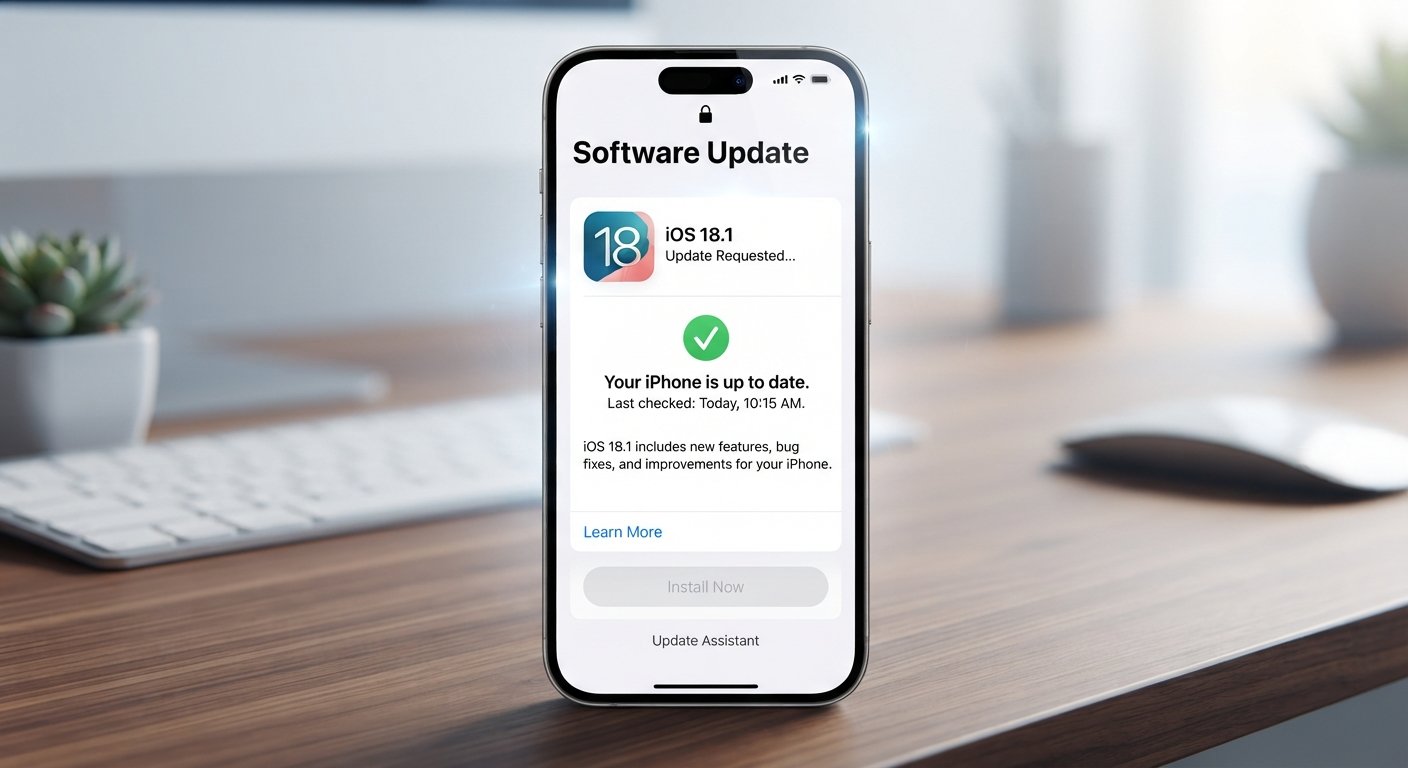
Learn how iOS updates work, what they change, how to update your iPhone safely, and what to do when an iOS update fails.
An iOS update can change much more than the look of your iPhone. It can improve security, fix bugs, add useful features, improve performance, and support newer apps. At the same time, an update can sometimes bring battery drain, storage issues, or compatibility problems.
That is why it is useful to understand what an iOS update does before installing it. Whether you have an older iPhone or a newer model, keeping iOS current is an important part of maintaining your device.
This guide explains how iOS updates work, how to prepare your iPhone, how to install an update, what happens after updating, and how to fix common problems.
What Is an iOS Update?
An iOS update is a new version of Apple’s operating system for compatible iPhone models. Apple releases updates to improve the operating system and address different needs, including security, performance, reliability, and new features.
Some updates are major releases. These usually introduce larger changes and may add new apps, interface improvements, privacy tools, or other features. Smaller updates often focus on bug fixes and security improvements.
For example, an iPhone may receive an update that fixes a problem with Wi-Fi, improves app stability, or addresses a security issue. Another update may introduce a major feature that changes how users interact with the phone.
The exact features available depend on the iPhone model. A newer iPhone may support features that are not available on an older device.
Why Should You Update Your iPhone?
Keeping your iPhone updated can help protect the device and keep it working properly. Software updates are not only about getting new features.
Security Improvements
Security is one of the main reasons to install an iOS update. Software can contain vulnerabilities that may be discovered after a version is released. Apple can address these problems through security updates.
This matters because your iPhone may contain private messages, photos, passwords, financial information, emails, and other sensitive data.
Installing available security updates reduces the risk of using an outdated version with known security problems.
Bug Fixes
Every operating system can have bugs. An iOS update may fix issues that cause apps to close unexpectedly, Bluetooth connections to fail, or certain settings to behave incorrectly.
A small update can sometimes solve a problem without changing the overall appearance of your iPhone.
New Features
Major iOS releases can introduce new features and improvements. These can affect communication, personalization, privacy, notifications, accessibility, photos, and other parts of the iPhone experience.
Some features are available only on specific iPhone models because they require newer hardware.
Better App Compatibility
App developers often update their applications to work with newer versions of iOS. Running a supported version can help prevent compatibility problems.
If an app requires a newer version of iOS, an outdated iPhone may eventually have difficulty installing or using the latest version of that app.
How to Check for an iOS Update
Checking for an update is simple and does not require a computer.
Open the Settings app on your iPhone. Select General, then tap Software Update.
Your iPhone will check Apple’s update service. If an update is available for your device, you will see information about the available version and an option to download and install it.
If your iPhone says that your software is up to date, there may not be a newer compatible update available at that moment.
The software update screen may also show information about automatic updates. You can use these settings if you want your iPhone to handle future updates automatically.
How to Prepare Your iPhone Before an iOS Update
Although many updates install without problems, preparation is still a good idea.
Back Up Your iPhone
Before a major software update, make sure your important information is backed up. An iCloud backup is one common option. You can also back up an iPhone using a computer.
A backup can help protect your personal information if something unexpected happens during an update.
Photos, contacts, messages, documents, and other important information should be stored safely before making major software changes.
Check Your Storage
An iOS update needs enough free storage space to download and install the required files.
To check your storage, open Settings, select General, and choose iPhone Storage.
If your storage is almost full, you may need to remove unnecessary videos, large files, unused apps, or duplicate content before installing the update.
You do not need to delete important personal information simply because an update is available. First check which files are taking up the most space.
Charge Your iPhone
It is better to update your iPhone while it has enough battery power. You can also connect it to a charger during the update.
A stable power source is especially useful when installing a large update because the process can take some time.
Connect to Wi-Fi
Major iOS updates can be large. Using a reliable Wi-Fi connection is usually better than relying on mobile data.
A stable connection can also reduce the chance of a failed download caused by an unstable network.
How to Install an iOS Update
Once your iPhone is prepared, go to Settings > General > Software Update.
If an update is available, select the option to download and install it. You may need to enter your iPhone passcode and agree to Apple’s terms.
Your iPhone will download the update and prepare it for installation. It may restart several times during the process.
Do not turn off the device while the update is being installed. If the progress appears slow, give the iPhone time to complete the process.
The total time depends on the update size, internet speed, device model, available storage, and Apple’s server traffic.
What Happens After an iOS Update?
After the installation finishes, your iPhone should restart and return to the normal lock screen or setup process.
You may notice changes in the interface or settings. Some applications may also need to update through the App Store.
It is normal for an iPhone to perform background tasks after a major update. During this period, you might notice temporary changes in battery usage or performance.
For example, your phone may feel slightly warm or use more battery while it completes indexing and other background processes. This does not automatically mean that the update damaged your battery.
Why Does My iPhone Battery Drain Faster After an iOS Update?
Battery drain is one of the most common concerns after a major iOS update.
Sometimes the change is temporary. After an update, the iPhone may perform background tasks such as indexing files, processing photos, syncing information, or updating applications.
If battery usage remains unusually high after the phone has had time to settle, check which applications are using the most power.
Open Settings > Battery to review battery activity.
You can then identify whether one particular app or system activity is responsible for the increased usage.
Battery health also matters. An older battery naturally loses capacity over time, so an iOS update may not be the only reason a user notices shorter battery life.
Why Is My iPhone Slow After an iOS Update?
A major iOS update can temporarily affect performance while the system completes background tasks.
An older iPhone may also feel different after a major operating system upgrade because newer software can place greater demands on hardware.
Before assuming that the update caused permanent performance problems, restart your iPhone and give it some time.
You should also check available storage. Very limited free storage can contribute to a poor device experience.
If the problem continues, check whether a smaller software update is available. Apple often releases follow-up updates that address issues discovered after a major release.
What If an iOS Update Gets Stuck?
Sometimes an iOS update may appear to stop progressing.
First, make sure the iPhone is connected to power and has a stable internet connection when appropriate. If the device appears completely unresponsive, the correct restart procedure depends on the iPhone model.
Avoid repeatedly interrupting an installation without knowing what stage the phone is in.
If the iPhone remains stuck for an extended period, Apple Support provides troubleshooting steps for update and startup problems.
For serious issues, a computer-based recovery process may be required. If you have important data that is not backed up, professional assistance may be safer than experimenting with unfamiliar recovery methods.
What If There Is Not Enough Storage for an iOS Update?
Storage problems are common on older iPhones.
Start by opening Settings > General > iPhone Storage. The storage screen shows which apps and files are consuming space.
Large videos often take up substantial storage. Offline downloads, old applications, message attachments, and media files can also become significant over time.
Remove only content you no longer need. If your photos are important, make sure they are safely backed up before deleting anything.
Once enough space is available, return to the Software Update screen and try again.
Can an Older iPhone Get the Latest iOS Update?
Not every iPhone supports every iOS release.
Apple determines compatibility based on the hardware and software requirements of each release. As newer iOS versions are introduced, some older iPhone models eventually stop receiving major operating system upgrades.
However, an older device may still receive important security updates even after it is no longer eligible for the newest major iOS version.
This means that two iPhones can be running different iOS versions while both remain supported in different ways.
Before buying an older used iPhone, check its model and Apple’s current software support information.
Should You Update iOS Immediately?
There is no single answer that applies to every user.
For security updates, installing them in a timely manner is generally important. For a major release, some users may prefer to wait briefly and see whether early bugs are reported.
The decision can depend on how important your iPhone is for work, study, communication, banking, or other daily tasks.
If you depend on your phone for critical work, make a backup first and ensure that your important apps are compatible before making a major software change.
Automatic iOS Updates
Apple provides automatic update options that can make software maintenance easier.
You can find these settings under Settings > General > Software Update > Automatic Updates.
Depending on the iOS version and device, you may see options related to automatically downloading or installing updates.
Automatic updates can be useful for people who do not want to manually check for new software.
However, users who need tighter control over when major software changes happen may prefer to review updates manually.
iOS Update vs Security Response
Apple has also introduced ways to deliver certain security improvements separately from a full operating system release.
These smaller security mechanisms are designed to address specific security needs without requiring a complete traditional iOS upgrade in every situation.
The exact options and names can change between iOS versions, so users should check the Software Update settings on their own iPhone for the options currently available.
How iOS Updates Affect Privacy
Privacy is another important part of software updates.
Apple regularly changes privacy controls and security protections across its operating systems. An update may introduce new permission controls or make existing privacy information easier to understand.
For example, applications may request access to information such as location, photos, contacts, Bluetooth, microphones, or other device functions.
After a major update, it is worth reviewing your privacy settings and checking which applications have access to sensitive information.
A good rule is simple: an app should not have access to information that it does not need to provide its main function.
How to Make an iOS Update Safer
A few simple habits can reduce problems.
Keep a current backup of important information. Make sure the iPhone has enough storage. Use a reliable Wi-Fi connection and adequate battery power. Avoid starting a major update when you urgently need your phone.
It is also wise to download software through Apple’s official update system rather than using unknown websites or unofficial installation files.
If someone sends you a link claiming that you need to install an iOS update outside the normal Apple process, be cautious. Fake update messages can be used in phishing attacks.
Real-Life Example: Updating an Older iPhone
Imagine someone has an older iPhone with limited storage. They receive a notification that a new iOS update is available.
Instead of immediately tapping install, they first open iPhone Storage. They discover that several large videos and unused applications are consuming most of the available space.
They back up their important photos, remove unnecessary files, connect the iPhone to Wi-Fi and power, and then install the update.
After the update, the iPhone takes some time to complete background tasks. Battery usage is slightly higher for a while, but it later returns closer to normal.
This example shows why preparation can be just as important as the update itself.
Common iOS Update Problems
iOS updates can occasionally produce unexpected issues.
An update may fail because of insufficient storage. A download may stop because of an unstable internet connection. Installation can take longer than expected. An application may temporarily behave differently after a major operating system change.
There can also be compatibility issues with older apps or accessories.
The best approach is to identify the exact problem instead of assuming that every issue has the same cause.
Check storage, battery, Wi-Fi, app updates, and the iPhone’s Software Update settings first. If the issue continues, use Apple’s official troubleshooting resources.
How Often Does Apple Release iOS Updates?
Apple does not release every update on a fixed schedule that users can rely on down to a specific date.
A major iOS version is generally followed by smaller releases throughout the software lifecycle. These can address bugs, security issues, and other improvements.
The availability of an update can also vary by iPhone model and region.
Instead of relying on social media posts or unofficial websites, check Settings > General > Software Update on your own iPhone for the software available to your device.
What Is the Difference Between a Major and Minor iOS Update?
A major iOS update usually introduces a new numbered operating system generation and can include significant changes.
A minor update usually focuses on improvements, bug fixes, security patches, and other refinements.
For example, a major release may introduce a redesigned interface or a collection of new features, while a smaller update may fix a specific problem discovered after launch.
Both types matter, but their purpose can be different.
Frequently Asked Questions About iOS Updates
What is the latest iOS update?
The latest iOS version changes over time as Apple releases new software. The most reliable way to see the version available for your specific iPhone is to open Settings > General > Software Update.
How do I update my iPhone?
Open Settings, select General, and tap Software Update. If an update is available, follow the on-screen instructions to download and install it.
Is it safe to update iOS?
Official iOS updates delivered through Apple’s software update system are designed for compatible devices. Before a major update, backing up your important information is a sensible precaution.
Will an iOS update delete everything on my iPhone?
A normal iOS update is designed to preserve your personal data and settings. However, having a current backup is still important in case something unexpected happens.
Why does my iPhone get hot after an iOS update?
Temporary warmth can occur while the iPhone performs background tasks after an update. If the device remains unusually hot for a long period, check battery and app activity and consider troubleshooting further.
Why is my iPhone battery draining after an update?
Battery use can temporarily increase after a major update because the iPhone may perform background processing. Check Settings > Battery to identify which apps or activities are using power.
Can I update my iPhone without Wi-Fi?
Update requirements can vary by iOS version and device. Wi-Fi is generally the preferred option for downloading a large software update because it provides a stable connection and avoids unnecessary mobile-data use.
What should I do if my iOS update fails?
Check your internet connection, available storage, battery level, and Apple software update settings. Restart the iPhone if appropriate and try again. If the problem continues, use Apple’s official support guidance.
How much storage does an iOS update need?
The required space varies by update and device. The Software Update screen provides information about the update, while Settings > General > iPhone Storage shows how much free space is available.
Can an old iPhone get new iOS updates?
Only compatible iPhone models can install a particular major iOS release. Older models may eventually stop receiving major upgrades, although Apple may continue providing security updates for some older software versions.
Conclusion
An iOS update is an important part of keeping your iPhone secure, compatible, and reliable. Updates can introduce new features, fix bugs, improve privacy, and address security problems, but major releases can also require preparation.
Before installing a significant update, back up your important information, check your storage, connect to a reliable network, and make sure your iPhone has enough power. If you notice temporary battery drain or slower performance afterward, give the device time to complete its background tasks before assuming something is wrong.
The easiest way to stay informed is to check Settings > General > Software Update regularly and use Apple’s official support information when troubleshooting.
Keep your iPhone prepared, keep your important data backed up, and review each iOS update based on your device and needs. That simple routine can make software updates much easier and safer to manage.
