

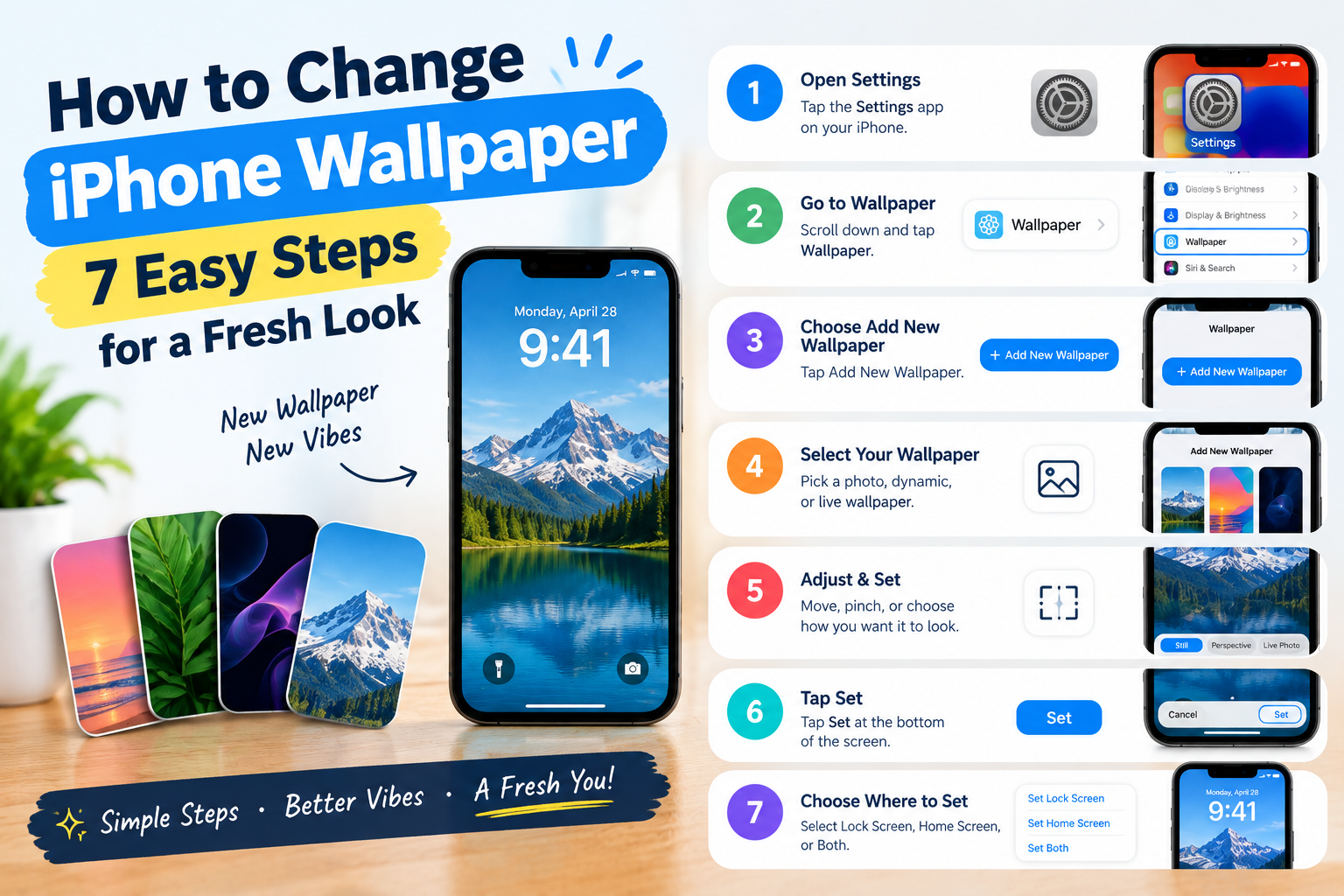
Learn how to change iPhone wallpaper in simple steps. Customize your Lock Screen, Home Screen, photos, and live wallpapers with ease.
Introduction
Your iPhone wallpaper is one of the easiest ways to make your phone feel new. You can use a favorite photo, a beautiful landscape, a simple color, or a custom design that matches your style. You can also choose different wallpapers for your Lock Screen and Home Screen.
If you are new to the iPhone, changing your wallpaper may seem confusing at first. You might wonder where to find the settings, how to use your own photos, or how to make the Lock Screen and Home Screen look different.
The good news is that the process is simple. You can how to change iPhone wallpaper in just a few steps, and you do not need any special app to get started.
In this guide, you will learn how to change iPhone wallpaper, use your own pictures, customize the Lock Screen, fix common problems, and make your phone look the way you want.
How to Change iPhone Wallpaper in Settings
The easiest way to change iPhone wallpaper is through the Settings app. This method lets you choose a new design for your Lock Screen and Home Screen.
Step 1: Open the Settings App
Unlock your iPhone and find the Settings app. Its icon looks like a set of gray gears.
Tap the icon to open the settings menu. You will see options for Wi-Fi, Bluetooth, notifications, display settings, and other features.
Step 2: Tap Wallpaper
Scroll through the Settings menu until you find the Wallpaper option.
Tap Wallpaper to open the wallpaper settings. Depending on your iOS version, you may see your current Lock Screen and Home Screen designs, along with an option to add a new wallpaper.
Step 3: Add a New Wallpaper
Tap Add New Wallpaper if the option appears on your screen.
Your iPhone will show different wallpaper choices. These may include photos, suggested images, colors, weather designs, astronomy wallpapers, and other options supported by your device.
Choose a design that you like. If you want to use a personal photo, select the Photos option.
Step 4: Customize Your Wallpaper
After choosing a wallpaper, you can adjust its appearance.
Depending on the wallpaper type and your iPhone model, you may be able to crop the image, change its style, select a color, or adjust the way it appears on the screen.
Take a moment to check the preview. Make sure the image looks clear and important details are not hidden behind the clock or other screen elements.
Step 5: Set Your Wallpaper
When you are happy with the design, tap Add or the relevant confirmation button.
On supported iOS versions, you may see an option to set the image as a wallpaper pair. You can use the same image for both screens or customize the Home Screen separately.
Your new wallpaper will appear once you complete the process.
How to Change iPhone Lock Screen Wallpaper
The Lock Screen is the first screen you see when you wake your iPhone. It displays the time, date, notifications, and other information.
Changing this wallpaper can give your phone a completely different look.
Use the Lock Screen Customization Method
On supported iPhones, you can change your Lock Screen directly without opening Settings.
First, wake your iPhone and unlock it if required. Stay on the Lock Screen, then touch and hold an empty area of the screen.
If your device supports Lock Screen customization, a wallpaper gallery will appear. You may need to authenticate with Face ID, Touch ID, or your passcode.
Tap the Add button to create a new Lock Screen or select an existing wallpaper to edit it.
Choose a photo or another available design. You can then customize supported elements, such as the clock style, colors, widgets, and wallpaper effects.
When you finish, tap Done to save your changes.
Customize the Clock and Widgets
Your Lock Screen can display more than a background image.
Depending on your iOS version, you may be able to change the clock font and color. You can also add supported widgets that display useful information, such as the weather, calendar events, or battery status.
For example, if you check the weather every morning, a weather widget can make that information easier to see.
Keep the design simple so the clock and important details remain easy to read.
How to Change iPhone Home Screen Wallpaper
The Home Screen contains your app icons, folders, and widgets. You can use a different change iPhone wallpaper here to create a unique appearance.
Set a Different Home Screen Picture
Open Settings and tap Wallpaper.
If you have already selected a new Lock Screen wallpaper, tap Customize under the Home Screen preview when that option is available.
You may see choices that let you use a photo, select a color, apply a supported blur effect, or adjust the existing wallpaper.
Choose the design you prefer and confirm your selection.
Your Home Screen will now use the selected background.
Use Different Wallpapers for Both Screens
You do not have to use the same picture on both screens.
For example, you could choose a family photo for your Lock Screen and a plain background for your Home Screen. This can make app names and icons easier to see.
To do this, create or select your Lock Screen wallpaper first. Then choose the option to customize the Home Screen separately.
Select another image or color, adjust its appearance, and save the changes.
If your iPhone shows a wallpaper-pair option, look for the separate Home Screen customization control rather than accepting the same background for both screens.
How to Set Your Own Photo as iPhone Wallpaper
Using your own photo is a great way to personalize your device. You can choose a picture of your family, a pet, a favorite place, or a special memory.
Choose a Photo From Your Gallery
Open Settings and go to Wallpaper. Tap Add New Wallpaper, then select Photos.
Browse your photo library and choose the picture you want to use.
You can also open the Photos app, select a picture, and use the Share menu to look for a wallpaper option if your iOS version provides one. The exact menu labels may vary by version.
Adjust the Photo to Fit Your Screen
After selecting the picture, check how it fits the display.
You may be able to move the image, zoom in, or zoom out. Try to keep the main subject away from the clock and other important Lock Screen elements.
For example, if you choose a portrait of a family member, position the face so it does not sit behind the clock.
A high-quality image usually produces a better result than a small, blurry picture. If possible, choose an image with enough resolution to look sharp on your iPhone display.
Use a Photo From the Internet
You can also use a picture saved from a website.
Open Safari or another browser, find an image you have permission to use, and save it to your Photos library. Then select it through the wallpaper settings.
Be careful when downloading images from unfamiliar websites. Avoid suspicious download buttons and websites that ask you to install unknown profiles or apps.
If you plan to share or publish the image elsewhere, make sure you have the right to use it.
How to Change iPhone Wallpaper on Different iOS Versions
The wallpaper process may look different depending on your iPhone model and installed software.
Apple regularly changes its settings and customization options, so not every iPhone displays the same controls.
Changing Wallpaper on Newer iPhones
Newer iPhones running recent iOS versions generally support wallpaper customization through Settings and, on supported versions, the Lock Screen gallery.
You may be able to add multiple Lock Screens, customize the clock, add widgets, and use special wallpaper designs.
Some options depend on the iOS version, device model, and wallpaper type.
Changing Wallpaper on Older iPhones
Older iPhones may use a simpler wallpaper menu.
Open Settings and look for Wallpaper. Select the option to choose a new wallpaper, then select an image from the available categories or your photo library.
Depending on your iOS version, you may see separate previews for the Lock Screen and Home Screen, followed by options to set both or customize them individually.
If your phone does not show a feature mentioned in a newer guide, check your installed iOS version and whether your model supports that feature.
Check Your iOS Version
To check which iOS version your iPhone uses, open Settings, tap General, and select About.
Look for the iOS version information.
You can check for available software updates by returning to General and selecting Software Update.
Not every iPhone supports the latest iOS release. If your device is older, some wallpaper features may not be available.
How to Use Live Wallpapers on iPhone
Live wallpapers can add movement or animation to your phone’s appearance, depending on the device and software version.
However, it is important to understand that change iPhone wallpaper features have changed across iOS releases.
Choose an Available Animated Wallpaper
Open Settings and tap Wallpaper. Select Add New Wallpaper and review the available categories.
If your iPhone and iOS version offer animated wallpaper options, choose one and check the preview.
Some newer versions support animated effects for certain photos or built-in designs. Other versions may offer different features.
Follow the instructions shown on your screen to apply the wallpaper.
Can You Use Live Photos as Wallpaper?
Support for Live Photo wallpapers has changed over time.
Older iOS versions offered a Live Photo wallpaper feature with animation on the Lock Screen. In newer versions, the available photo wallpaper effects and animation controls may differ.
If your iPhone does not show a Live Photo or animation option, it may not be supported in the way you expect by your current iOS version.
Check the available controls in the change iPhone wallpaper editor before choosing a picture.
Does Live Wallpaper Drain Battery?
Battery use depends on the wallpaper feature, screen activity, and how often you use your device.
A static image generally requires less processing than effects that involve movement or other active features. However, the actual impact varies, and the wallpaper alone may not have a major effect on battery life.
If battery life is your priority, use a simple static image and review your battery usage in Settings.
How to Make Your iPhone Wallpaper Look Better
A good wallpaper should look attractive without making your phone difficult to use.
Choose a High-Quality Image
Start with a clear, high-resolution picture. Images that are too small may look blurry when stretched across the display.
Photos taken with your iPhone often work well because they are already stored in a format suitable for your device.
If you download an image, check its quality before applying it.
Keep Important Details Visible
The Lock Screen clock and notifications cover part of the background.
Choose an image that leaves enough open space around the top of the screen. This can help you keep the main subject visible.
For example, a landscape with open sky near the top may work better than a close-up photo with important details in that area.
Use Simple Home Screen Backgrounds
App icons can become difficult to see when a wallpaper contains too many bright colors or detailed patterns.
A plain color, soft gradient, or blurred image may make your Home Screen easier to read.
You can also use a different image for each screen to balance appearance and usability.
Match Your Wallpaper to Focus Modes
Some iPhones allow you to link specific Lock Screens with Focus modes.
For example, you could use a simple design for Work Focus and a personal photo for your personal time.
When supported, this feature can help you distinguish between different parts of your day.
To set it up, open the Lock Screen gallery and look for the Focus linking option. The exact steps depend on your iOS version.
Common Change iPhone Wallpaper Problems and How to Fix Them
Sometimes, a wallpaper does not look the way you expect. Most problems can be solved by checking the settings or choosing another image.
Why Can’t I Change iPhone Wallpaper?
If you cannot find the wallpaper controls, first check that you are opening Settings and selecting Wallpaper.
If the options still appear unavailable, restart your iPhone and check for a supported software update.
A device managed by a school or workplace may also have restrictions that affect certain settings. If so, contact the administrator rather than trying to bypass the restrictions.
Why Does My Wallpaper Look Blurry?
A blurry wallpaper may come from a low-resolution image or excessive zooming.
Choose a larger, clearer photo and adjust its position in the wallpaper editor.
If the original image is already blurry, changing wallpaper settings may not improve its quality. Try selecting another picture.
Why Does My Wallpaper Keep Changing?
If your Lock Screen changes unexpectedly, check whether you have multiple Lock Screens configured.
Some iOS features let you switch between different Lock Screens, and certain wallpaper arrangements can be connected to Focus modes.
Open the Lock Screen gallery by touching and holding the Lock Screen, then review your saved designs.
If you use a photo-based wallpaper feature that changes pictures automatically, check its settings and select a single photo if you prefer a fixed background.
Why Is My Home Screen Wallpaper Different From My Lock Screen?
This is normal when the two screens use separate customization settings.
Open Settings, select change iPhone wallpaper, and check the Lock Screen and Home Screen previews.
If you want the same image on both screens, choose the available wallpaper-pair option or set the same photo for each screen.
If you prefer different designs, customize the Home Screen separately.
Why Can’t I Set a Live Wallpaper?
The available animation features depend on your iPhone model, iOS version, and selected image.
Check whether your change iPhone wallpaper editor offers the relevant Live Photo or animation controls. If the option is missing, your current software may not support that feature.
You can still personalize your phone with a high-quality static image or one of the built-in wallpaper designs.
Frequently Asked Questions
How Do I Change iPhone Wallpaper Quickly?
Open Settings, tap Wallpaper, and select Add New Wallpaper. Choose a photo or built-in design, customize it, and confirm your selection. On supported iPhones, you can also touch and hold the Lock Screen to open the wallpaper gallery.
Can I Have Different Wallpapers for My Lock Screen and Home Screen?
Yes. On supported iOS versions, you can customize the Lock Screen and Home Screen separately. Choose a Lock Screen design, then select the Home Screen customization option to use another photo, color, or supported effect.
How Do I Put a Picture From My Camera Roll on My iPhone Wallpaper?
Open Settings, tap Wallpaper, and choose Add New change iPhone wallpaper. Select Photos and choose a picture from your library. Adjust the image to fit your screen, then confirm your selection.
How Do I Change iPhone Wallpaper Without Using Settings?
On supported iPhones, wake your device and touch and hold the Lock Screen. Authenticate if required, then use the wallpaper gallery to add or customize a design. You can also check the Photos app’s Share menu for a wallpaper option.
Can I Change iPhone Wallpaper Every Day?
Yes, if your iPhone and iOS version support a photo-shuffling wallpaper feature. You can choose a collection of pictures and configure how they change using the available options. Feature names and settings may vary by software version.
What Size Should an change iPhone wallpaper Be?
The ideal image dimensions depend on your iPhone model and display resolution. A high-resolution portrait image is usually a good starting point. Select a picture that looks sharp when cropped to fit your screen.
Can I Use My Own Photo as a Lock Screen Wallpaper?
Yes. You can select a photo from your Photos library through the wallpaper settings. After choosing the image, adjust its position and review how it appears behind the clock and widgets.
How Do I Remove an Old iPhone Lock Screen change iPhone wallpaper?
On supported iOS versions, touch and hold the Lock Screen to open the wallpaper gallery. Find the wallpaper you want to remove and use the available deletion control. Make sure you select the correct design before confirming.
Does Changing My iPhone Wallpaper Delete My Photos?
No. Changing your wallpaper does not normally delete the original photo from your Photos library. It changes the image used as your screen background. Deleting the wallpaper design and deleting the original photo are separate actions.
Why Does My iPhone Wallpaper Look Zoomed In?
The image may be cropped to fit the display, or the wallpaper editor may have zoomed in on the selected picture. Try adjusting the image’s position and scale. If the result still looks poor, choose a photo with a composition that better fits your screen.
Conclusion
Change iPhone wallpaper is a simple way to personalize your device. You can select a photo from your library, choose a built-in design, customize the Lock Screen, or use a separate background for the Home Screen.
To get started, open Settings, tap Wallpaper, and select Add New Wallpaper. Choose your preferred image, adjust its appearance, and save your changes. If your change iPhone wallpaper supports Lock Screen customization, you can also use the Lock Screen gallery to manage your designs.
Remember that some features vary by change iPhone wallpaper model and iOS version. If an option is missing, check your software version and the available wallpaper settings.
Ready to give your iPhone a fresh look? Choose a favorite photo or design today, follow these simple steps, and create a wallpaper that makes your phone feel more personal.
